
Undo & saving
Undo and redo
Section titled “Undo and redo”Undo and redo are in the top bar, next to search. They cover cell edits, inserted, deleted and moved rows, and column changes: up to 50 steps while the file is open.
They don’t cover sorting, filtering, search or layout, because those only change what you’re looking at.
After an undo, the table scrolls to the rows that changed and selects them. If a filter hides them, the message says so.
Closing the file clears the history.
Your edits and the file
Section titled “Your edits and the file”Opening a CSV copies it into Smart CSV. Every edit is kept there as you make it. The CSV file itself is only changed when you write to file.
While there are edits the file doesn’t have yet, a green Not written to file line shows under the row count, and under the file on the home list.
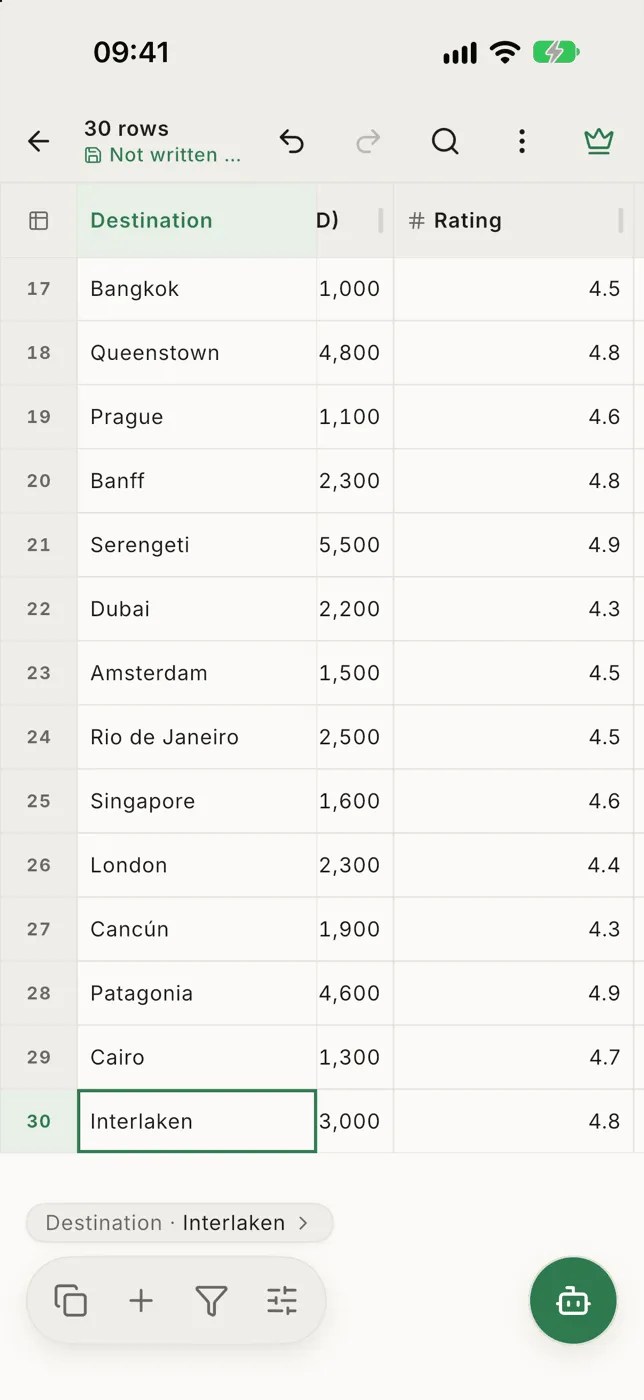
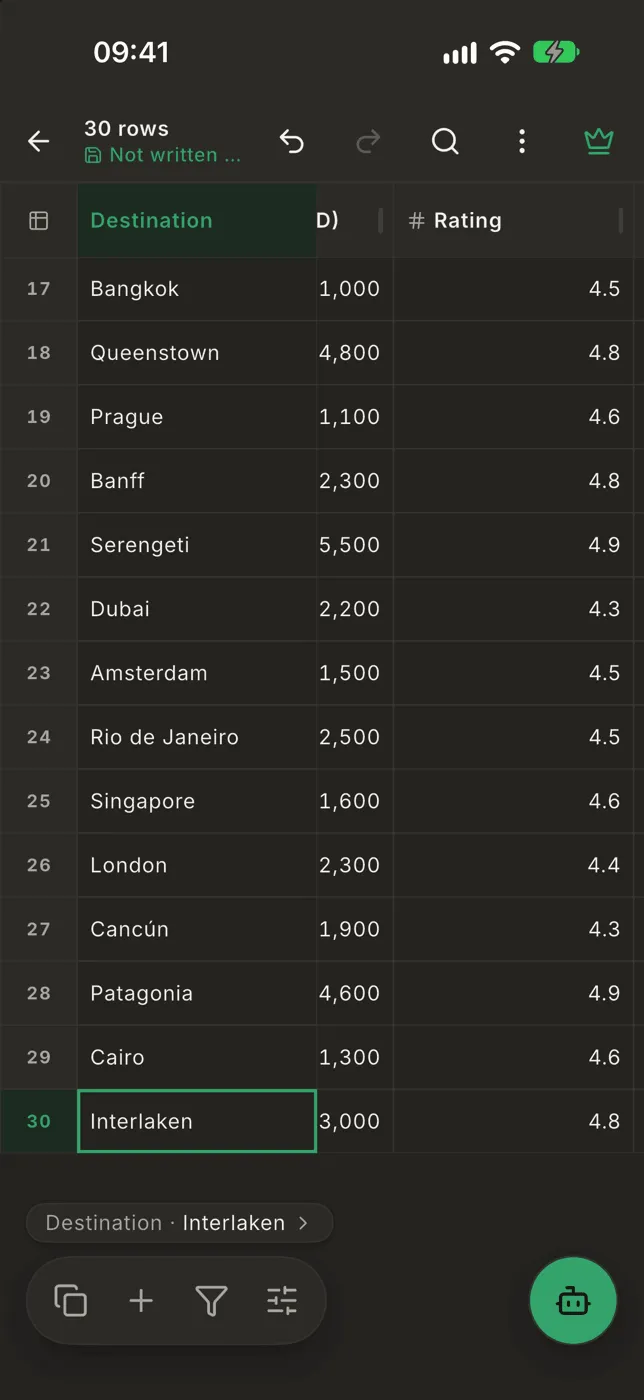
Write to file
Section titled “Write to file”The dialog asks which encoding to write in. It starts with the file’s own, so a Japanese or Russian file stays readable in the app that made it.
- Pick UTF-8 with BOM if the file will be opened in Excel.
- If the table has characters the encoding can’t hold, such as an emoji in a
Shift_JIS file, the dialog says how many. They are written as
?unless you tap Use UTF-8.
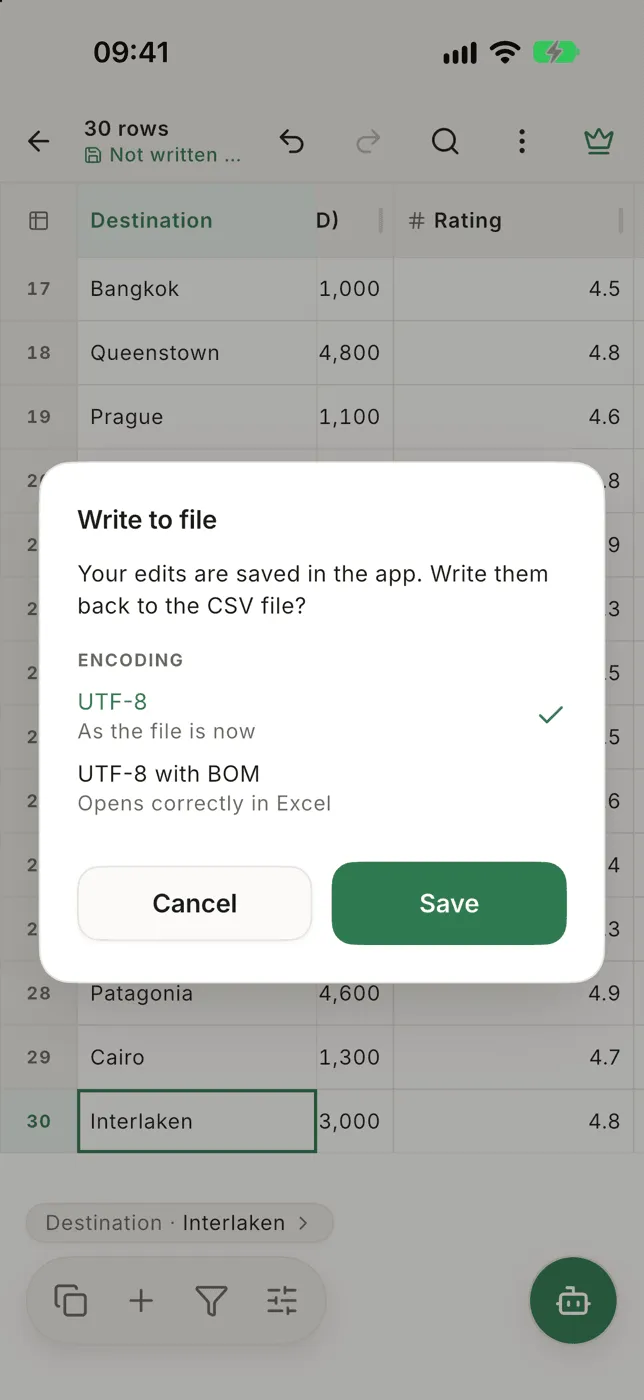
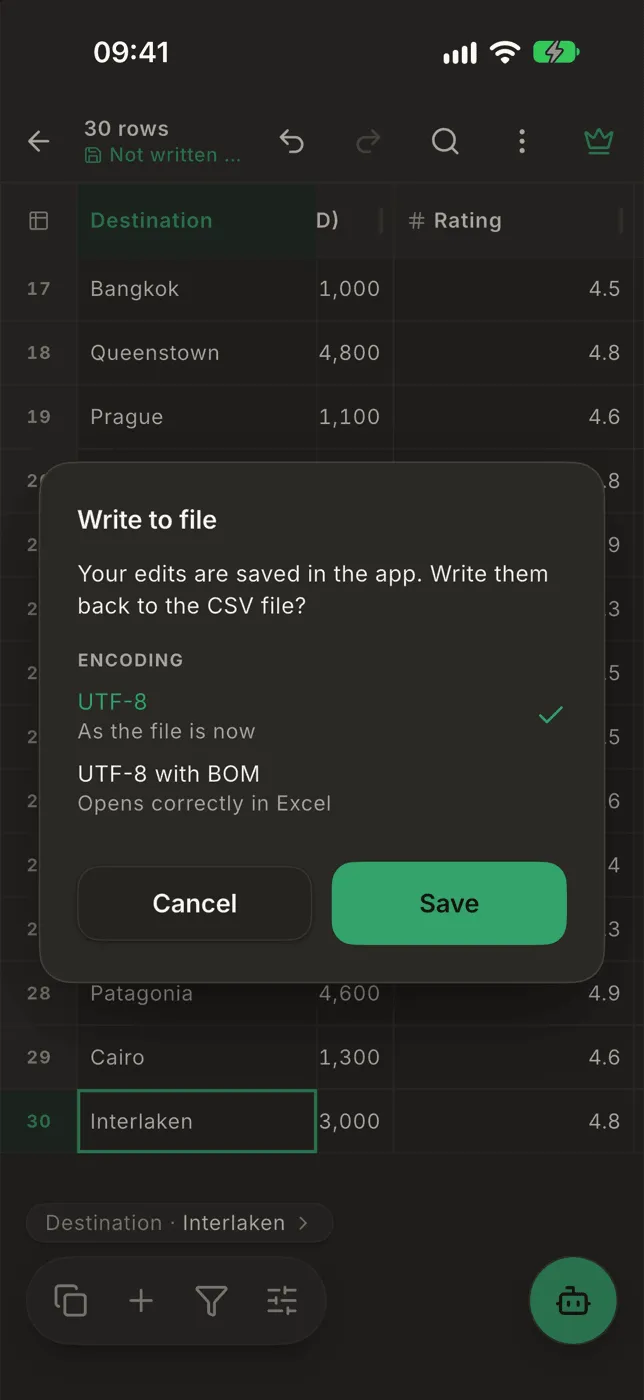
A big file takes a few seconds to write. The Writing to file dialog counts the rows as they go. Cancel leaves the file as it was, and your edits stay in the app. If writing fails, tap Retry on the message.
Writing always writes Smart CSV’s copy. A file you picked from iCloud Drive, Google Drive or another app is not changed there; share it and save it over the original.
When the file changes on disk
Section titled “When the file changes on disk”When you open a file again:
- Unchanged: it opens instantly, with your edits.
- Changed, not edited in Smart CSV: it is read again and you’re asked to check it.
- Changed and edited: you choose Reload (your edits are dropped) or Keep my edits.