
Selecting and copying
Select
Section titled “Select”- A cell: tap it.
- A row: tap its number on the left.
- A column: tap its name.
- A range: select a cell, then drag the round handle at its corner.
- Everything: tap the corner square at the top left of the table.
- Exact rows: ⋯ → Select range, then type From and To.
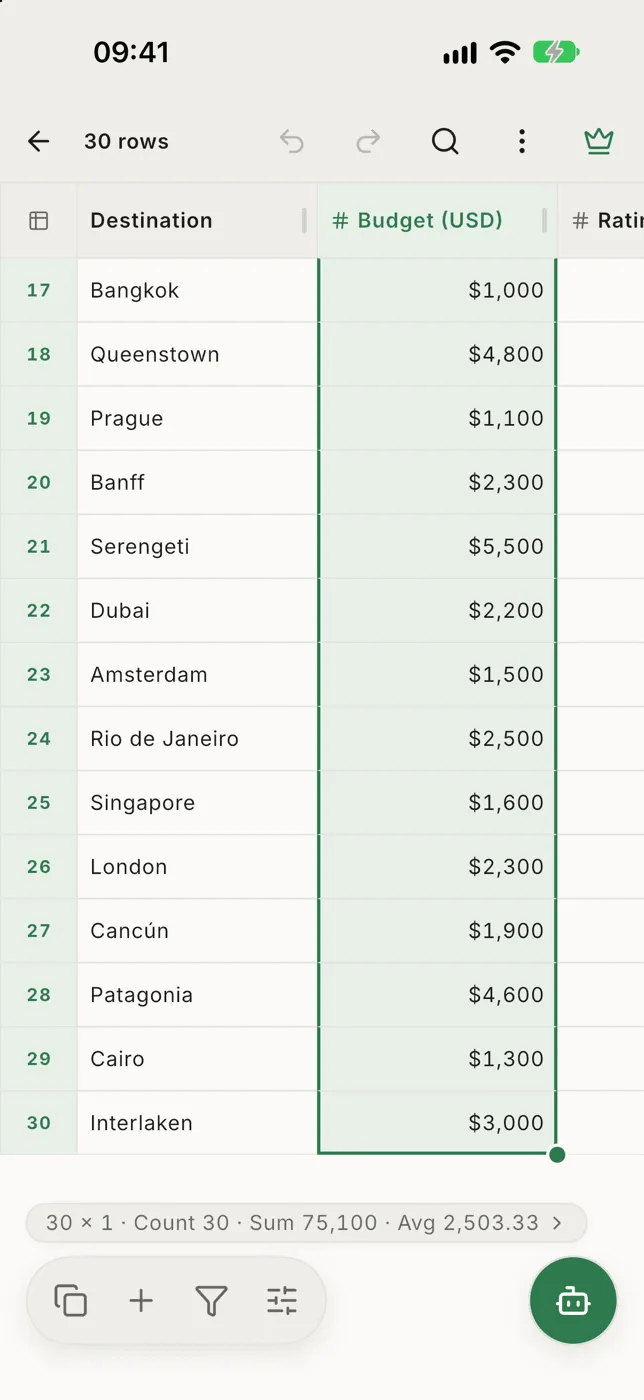
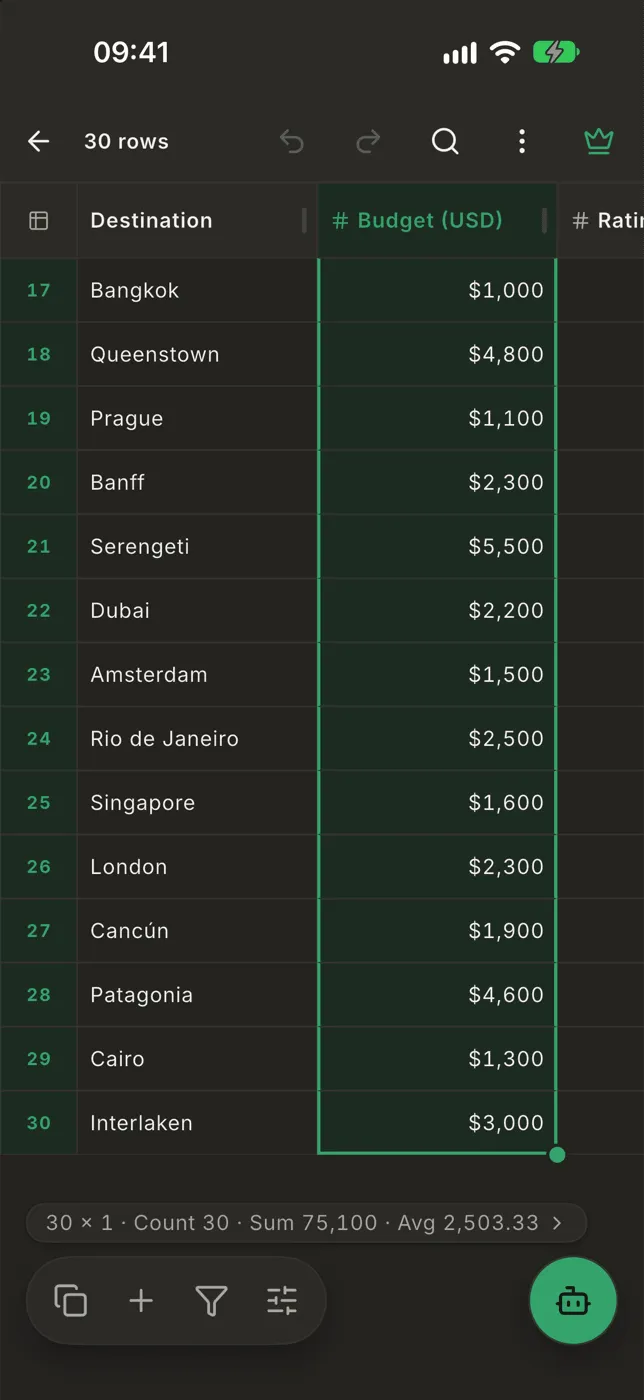
Tap Copy in the bottom bar.
- One cell copies just its text.
- Anything larger copies as a table (tab-separated), so it pastes into Excel, Google Sheets or Numbers as real cells.
- The row numbers are never copied.
- A selection copies its rows across the whole file, not just the ones on screen, following your filter and sort.
Sum, average and more
Section titled “Sum, average and more”When more than one cell is selected, a line above the bottom bar sums it up:
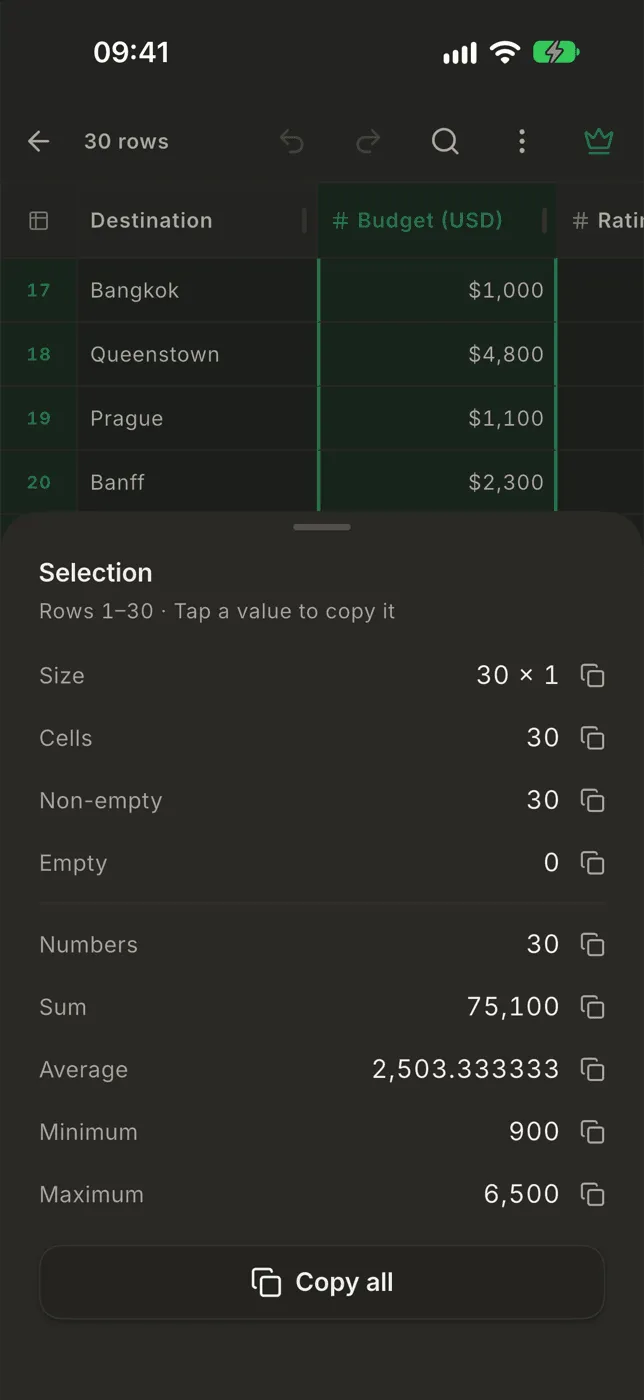
30 × 1 · Count 30 · Sum 75,100 · Avg 2,503.33Tap the line (or hold a cell and choose Selection stats) for the full list: size, filled and empty cells, and for numbers the count, sum, average, minimum and maximum. Tap any value to copy it, or Copy all to copy the whole list for a spreadsheet.
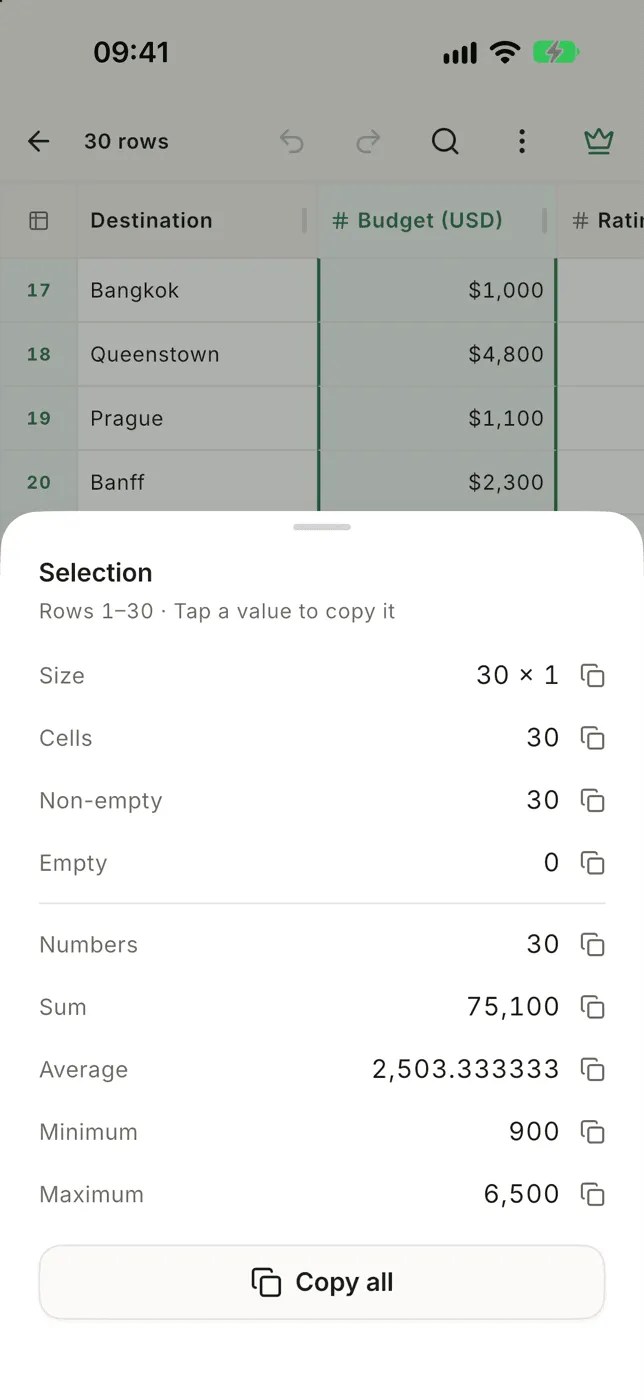
Numbers written as 1,234.50, $5 or 1.234,50 all count.