
Reading the table
The screen
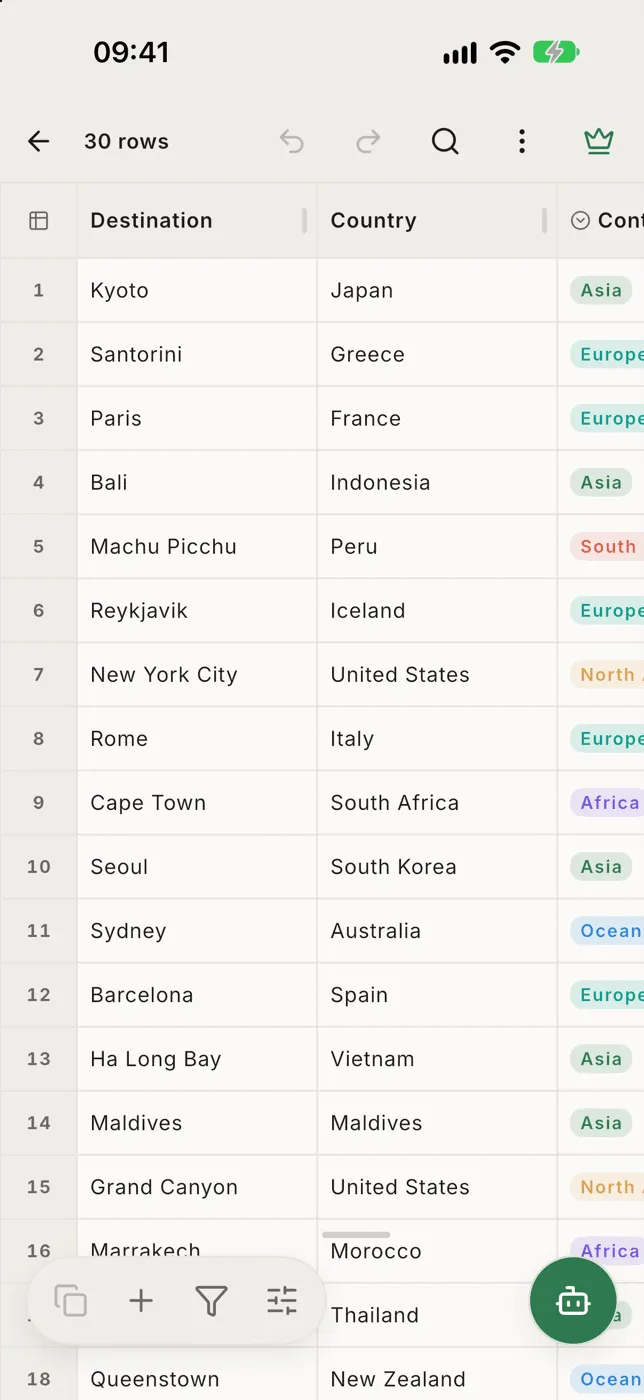
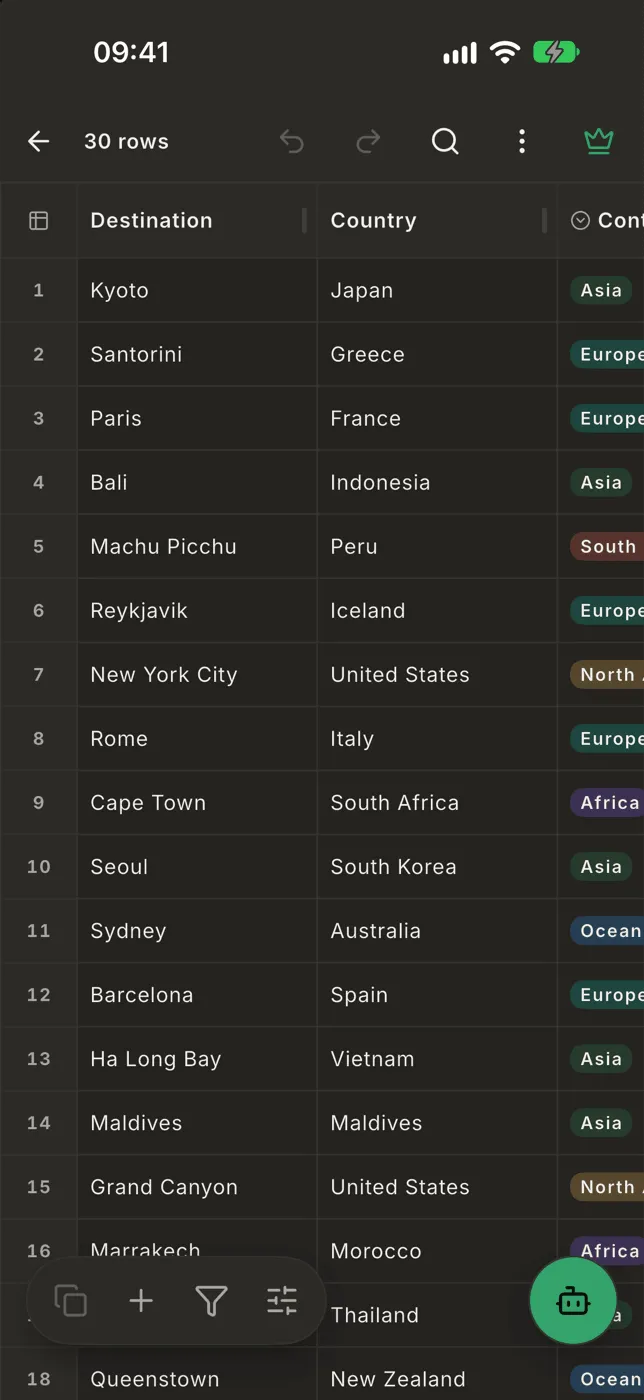
Section titled “The screen”- Top bar: back, the file’s row count, then undo, redo, search and ⋯ (more).
- The table: column names across the top, row numbers down the left. Drag to scroll in any direction.
- Bottom bar: Copy, + (the Edit menu), Filter and Layout, with the round assistant button beside it.
Scroll a long file
Section titled “Scroll a long file”A scrollbar appears on each edge while the table moves. Drag the thumb to jump; the bubble next to it says which row you’ll land on. To go straight to a row, tap ⋯ → Jump.
Read a whole cell
Section titled “Read a whole cell”Tap a cell. A line above the bottom bar shows its column and its full value,
for example Name · John Appleseed of 1 Infinite Loop….
- A cell with several lines shows ⏎ where each line breaks.
- An empty cell reads Empty.
- Very long values end in
…in the table; the line shows more.
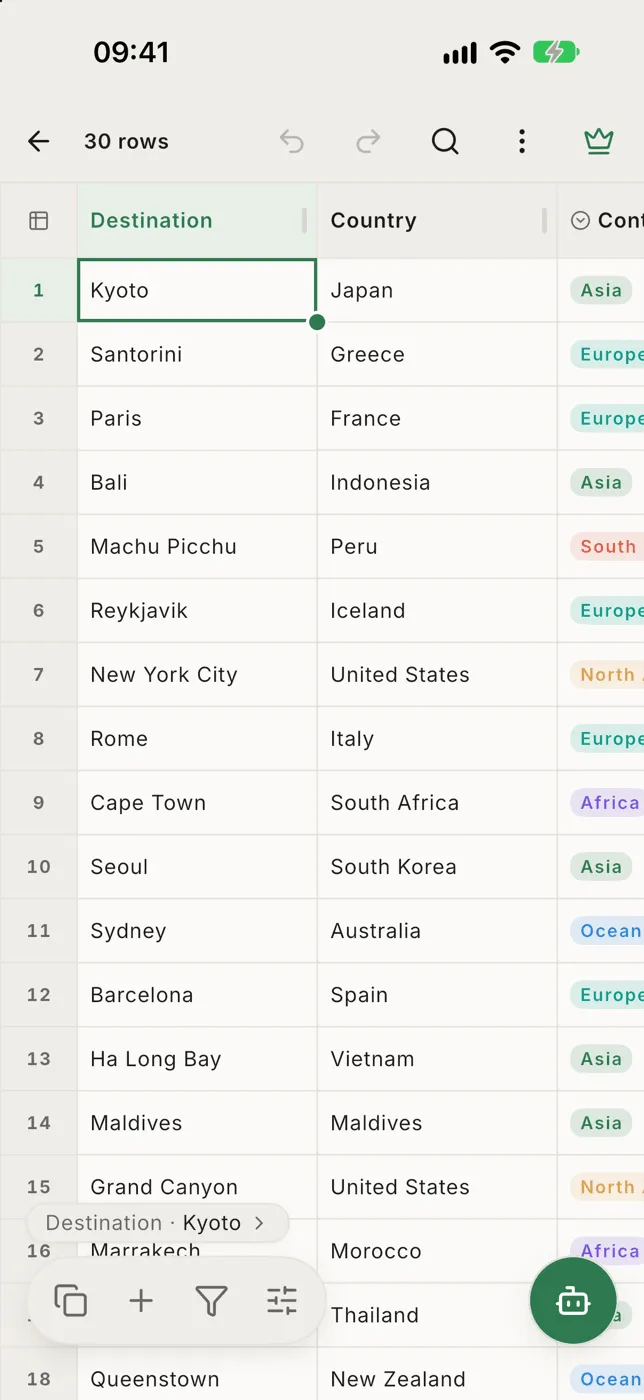
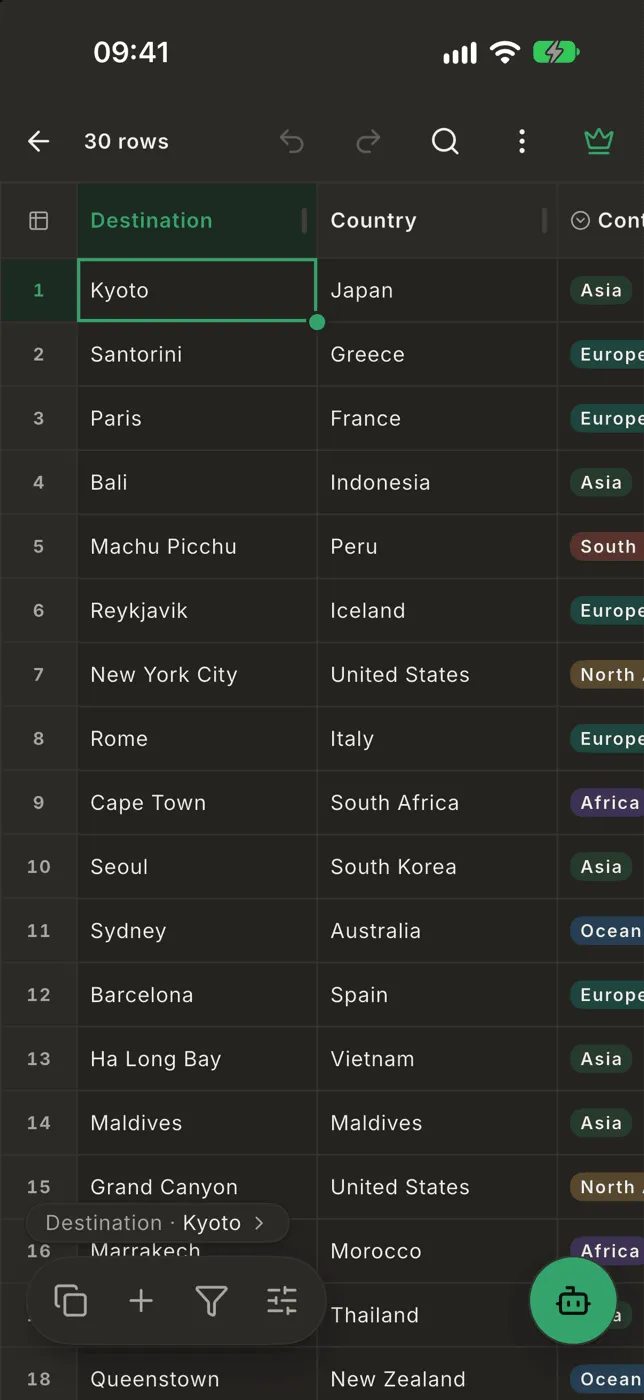
Tap that line to open the whole row as a form, with every field in full. See The row form.
Tap and hold
Section titled “Tap and hold”| Where | Tap | Hold |
|---|---|---|
| A cell | Select it. Tap again to edit. | The Edit menu: Open row, Copy, Cut, Clear, Filter by this value… |
| A row number | Select the row | The Edit menu for rows: insert, move, delete |
| A column name | Select the column | Sort by it (hold again to flip, a third time to clear) |
To close a menu without choosing, tap anywhere outside it.
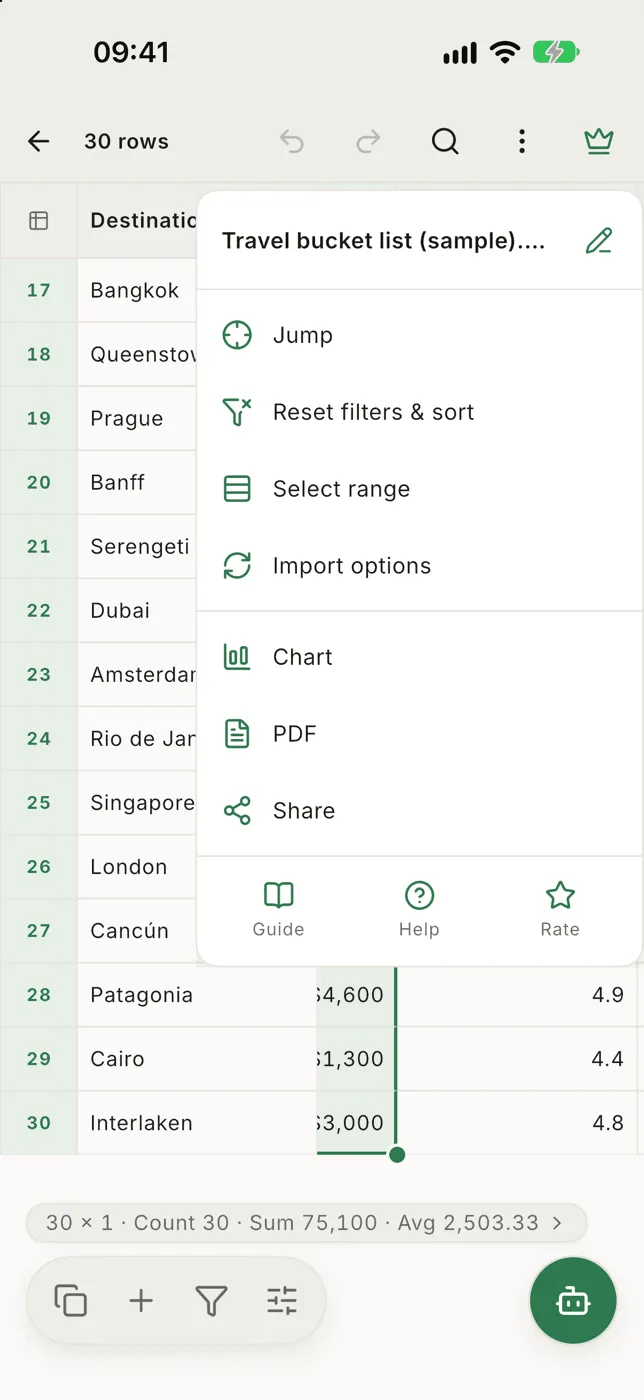
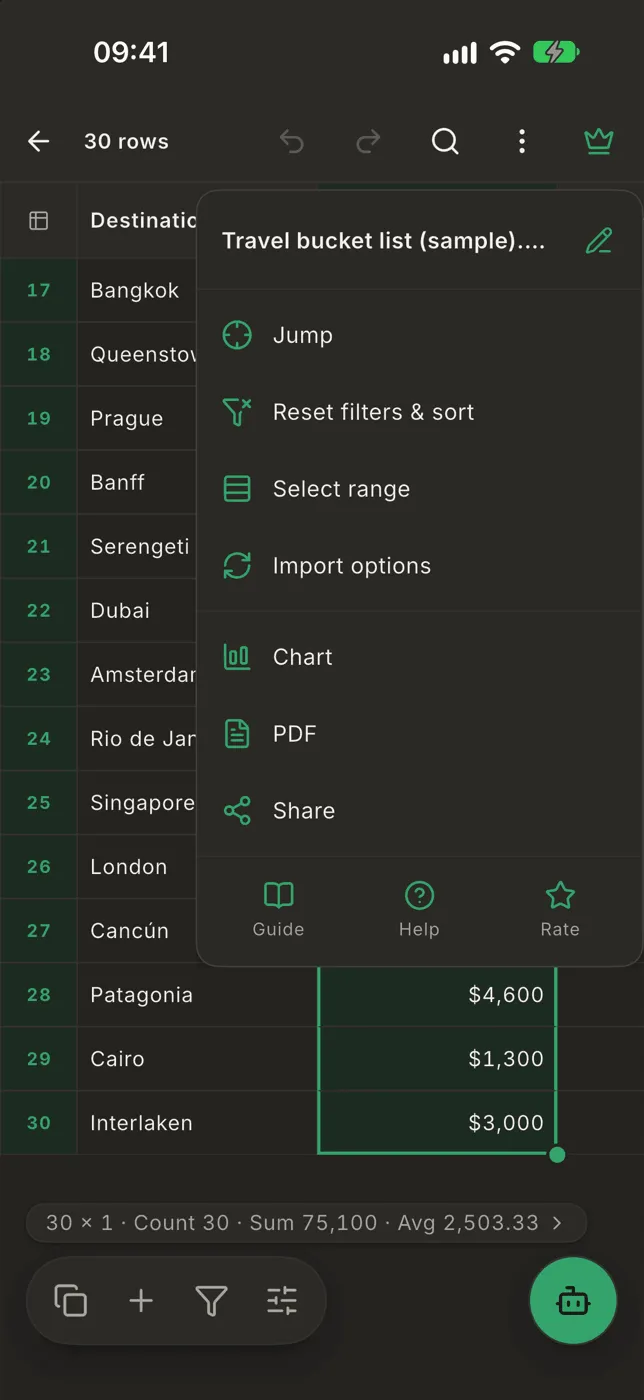
The ⋯ menu
Section titled “The ⋯ menu”- The file name, with a pencil to rename it
- Jump, Reset filters & sort, Select range
- Import options (and Reload from original for a file picked from Files or a cloud drive)
- Chart, PDF, Share
- Guide, Help and Rate
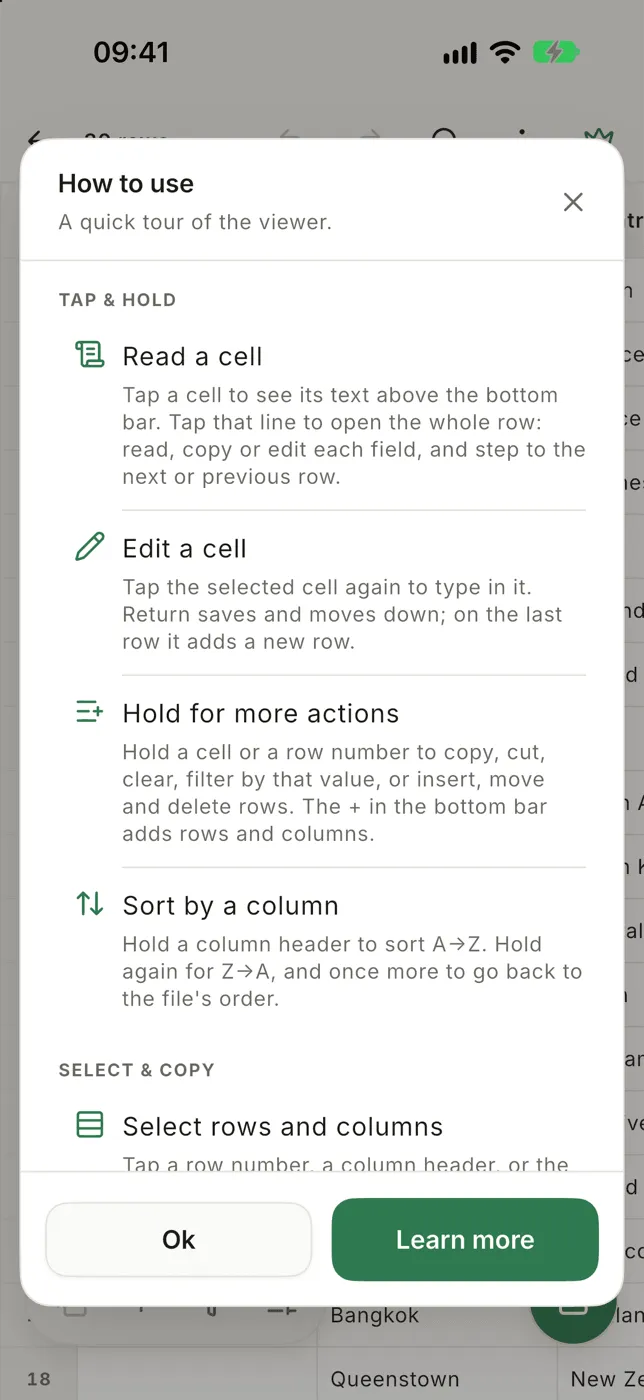
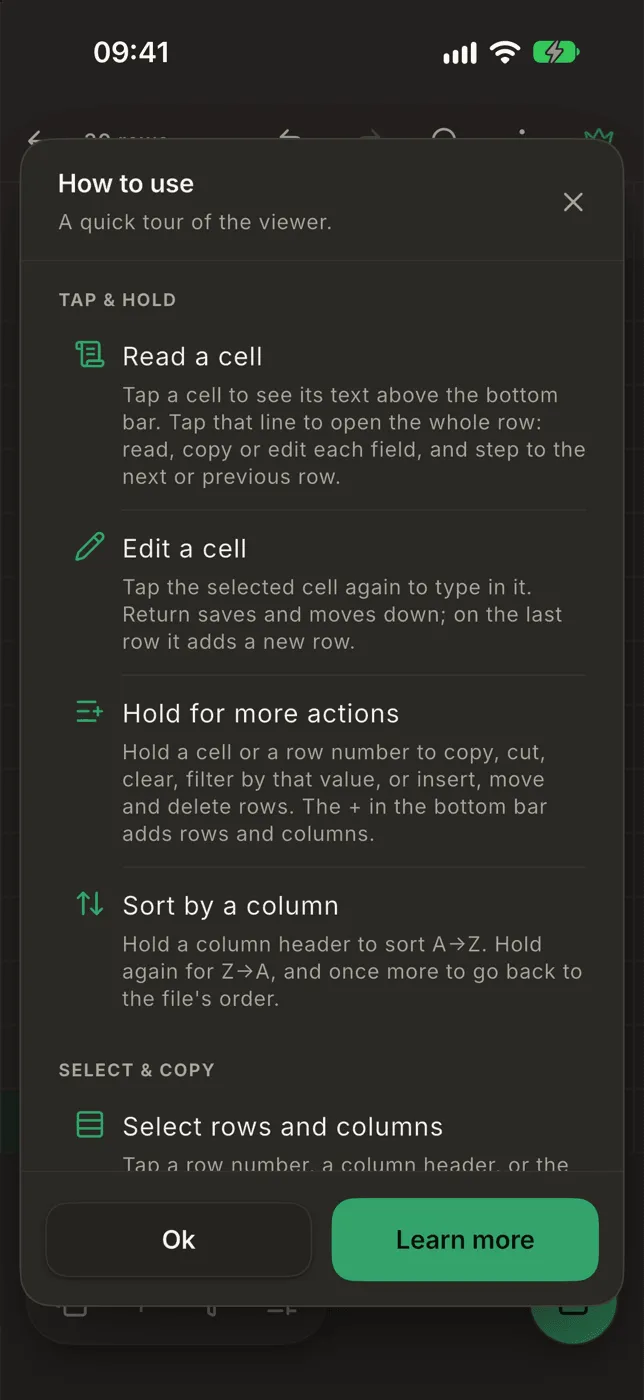
Guide shows a short list of gestures again. It opens on its own the first time you open a file.