
The row form
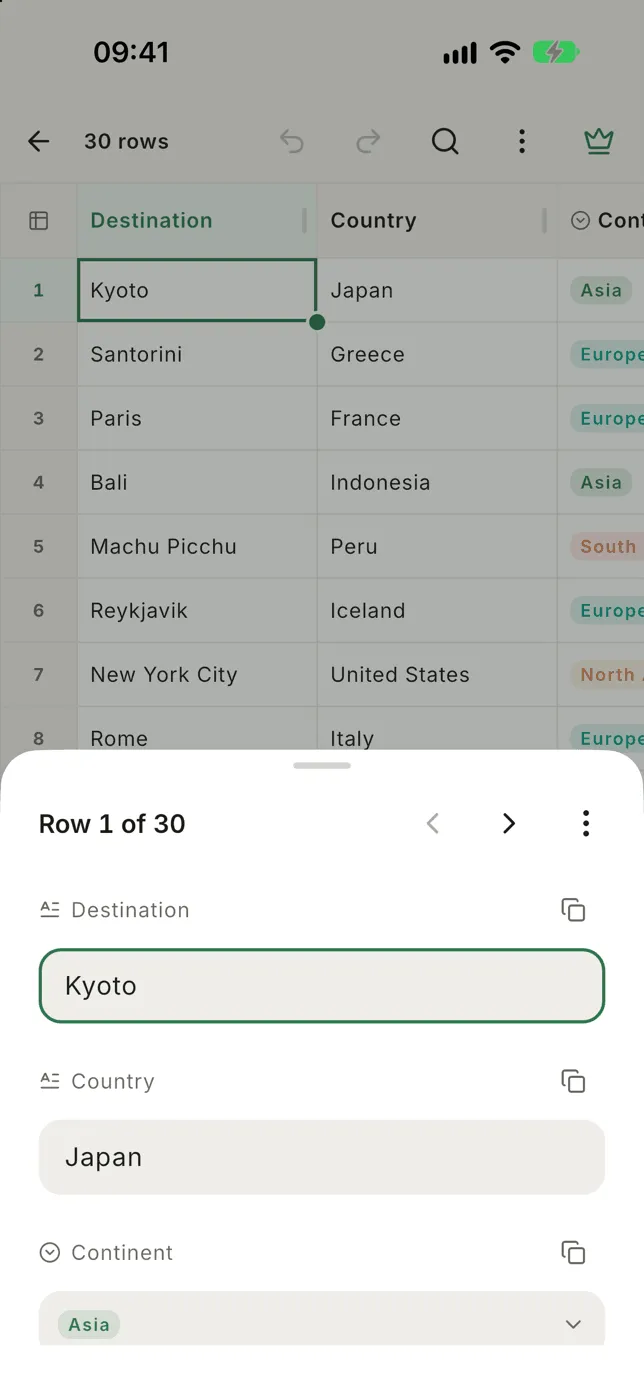
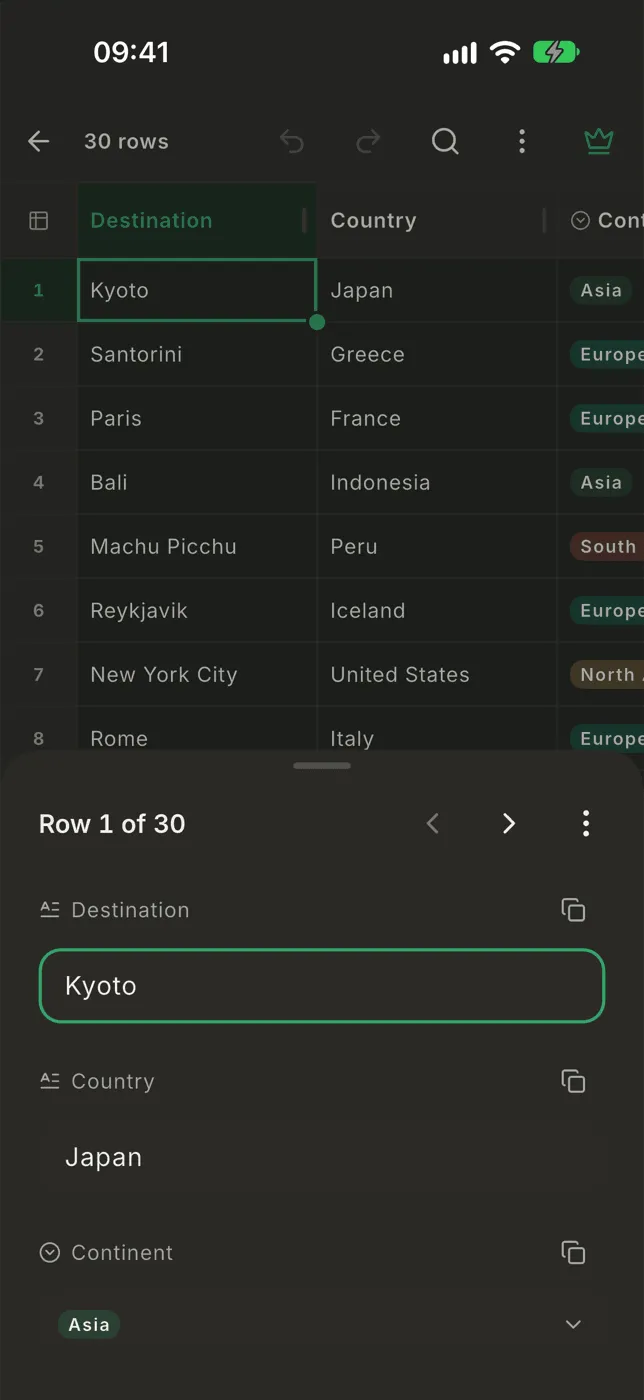
Wide files are hard to read one cell at a time. The row form shows one row as a list of fields, one per column.
Open it
Section titled “Open it”- Tap a cell, then tap the line above the bottom bar that shows its value (it ends in ›).
- Or hold a cell or a row number and choose Open row.
The form opens on the field you tapped. Drag it up for full height, or down to close it.
Move between rows
Section titled “Move between rows”The top of the form shows Row 12 of 340 with ▲ and ▼. They follow
what the table shows, including your filter and sort. The table scrolls
along behind the form, so when you close it you’re on the row you were
reading.
Tap a field and type. The change is saved when you leave the field: Next on the keyboard, a tap on another field, ▲ or ▼, or closing the form. Each saved field is one step of undo.
If you were typing in a field and move to the next row, the same field is ready there, so you can fill in a column row by row.
Fields follow the column type:
- Text fields grow up to eight lines.
- Number fields open the number keyboard and show the formatted value underneath.
- Checkbox fields toggle with one tap.
- Select fields show their choices; pick, search or add one.
- Date fields have a calendar button.
- Link fields have a button that opens the link.
- Image fields show the picture; tap it to see it full screen.
A field you changed gets a ↺ button. Tap it to put back what the field held when you first saw it.
Add rows at the end
Section titled “Add rows at the end”On the last row, ▼ becomes +, and an Add row button appears under the last field. Tap either to add a blank row and start typing in it. It’s the quickest way to fill in a new file.
- Copy next to a field copies that value.
- ⋯ → Copy row as CSV line copies the row as one line of the file.
- ⋯ → Copy row as text copies it as
Column: valuelines.
Hidden columns
Section titled “Hidden columns”Columns you hid in the table are at the bottom, under N hidden columns. You can read and edit them there too.