
Editing cells
Edit a cell
Section titled “Edit a cell”- Tap a cell to select it.
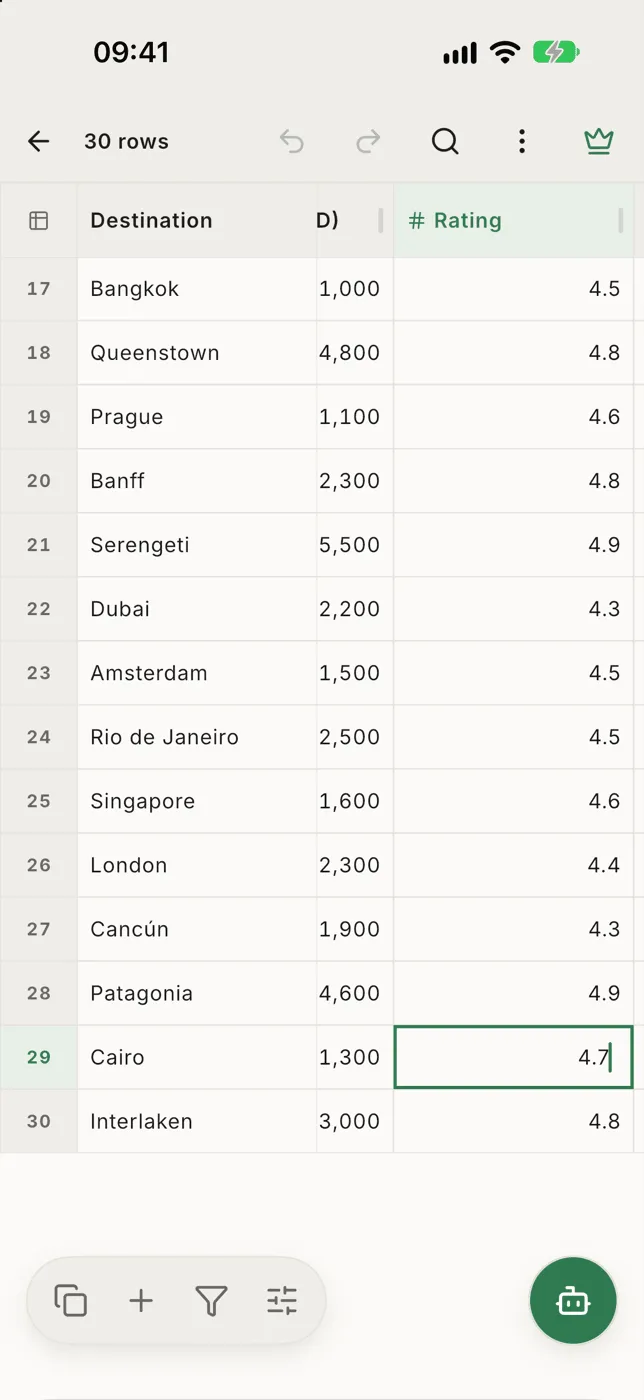
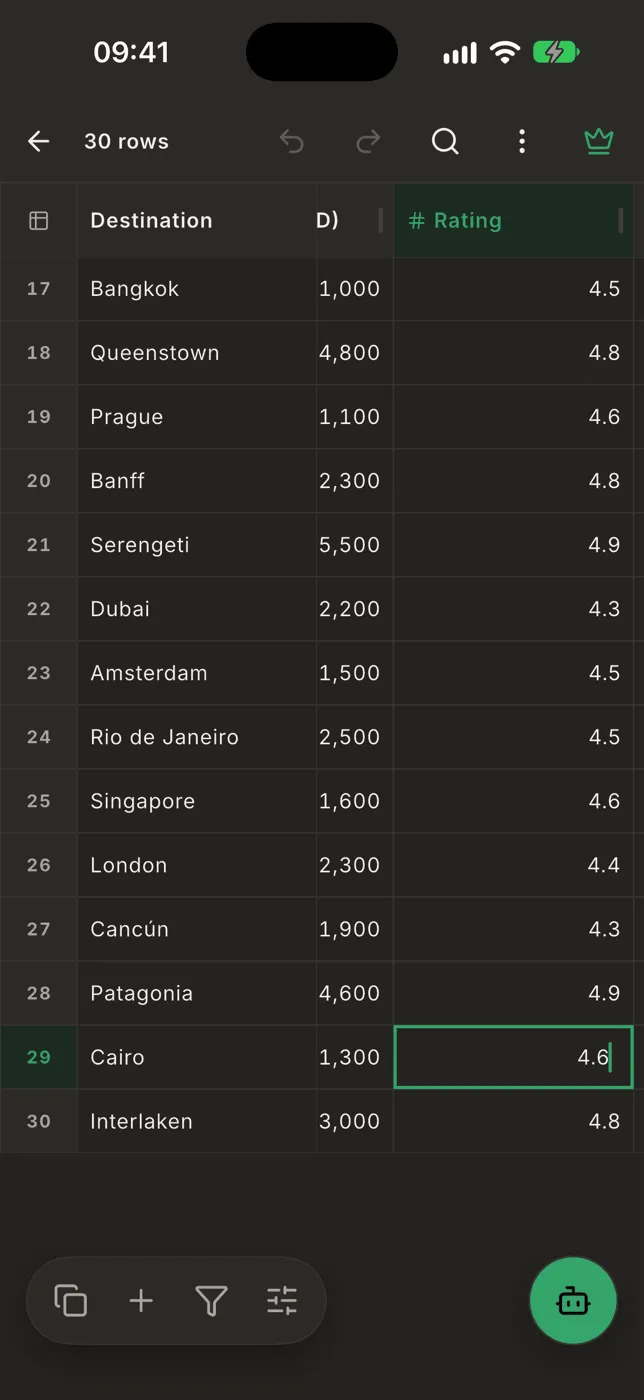
- Tap it again. A text field opens over the cell and the keyboard comes up.
- Type. Return saves and moves down one row. Tapping anywhere else saves too.
On the last row, Return saves, adds a new row below and opens it, so you can keep typing data in without touching the menus.
Cells with a type edit their own way: a checkbox ticks with one tap, a select or date column opens its picker when you tap the cell twice.
For long values, or to edit a whole row at once, use the row form.
Cut, clear and paste
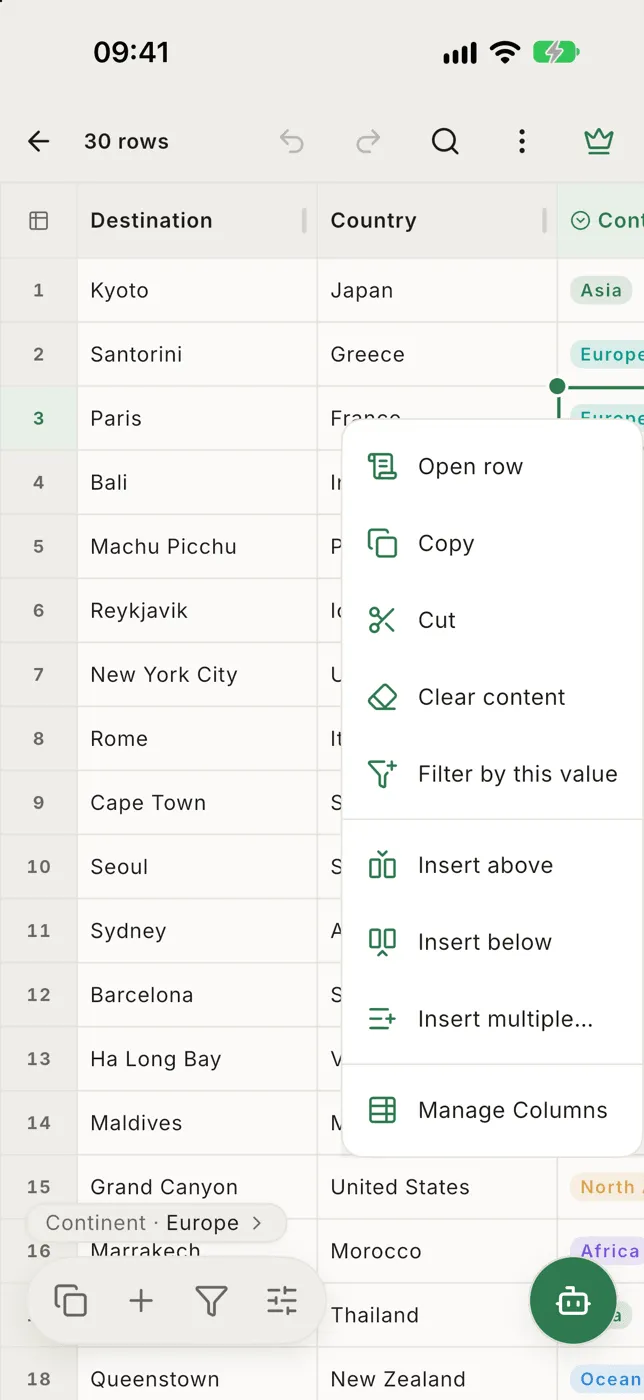
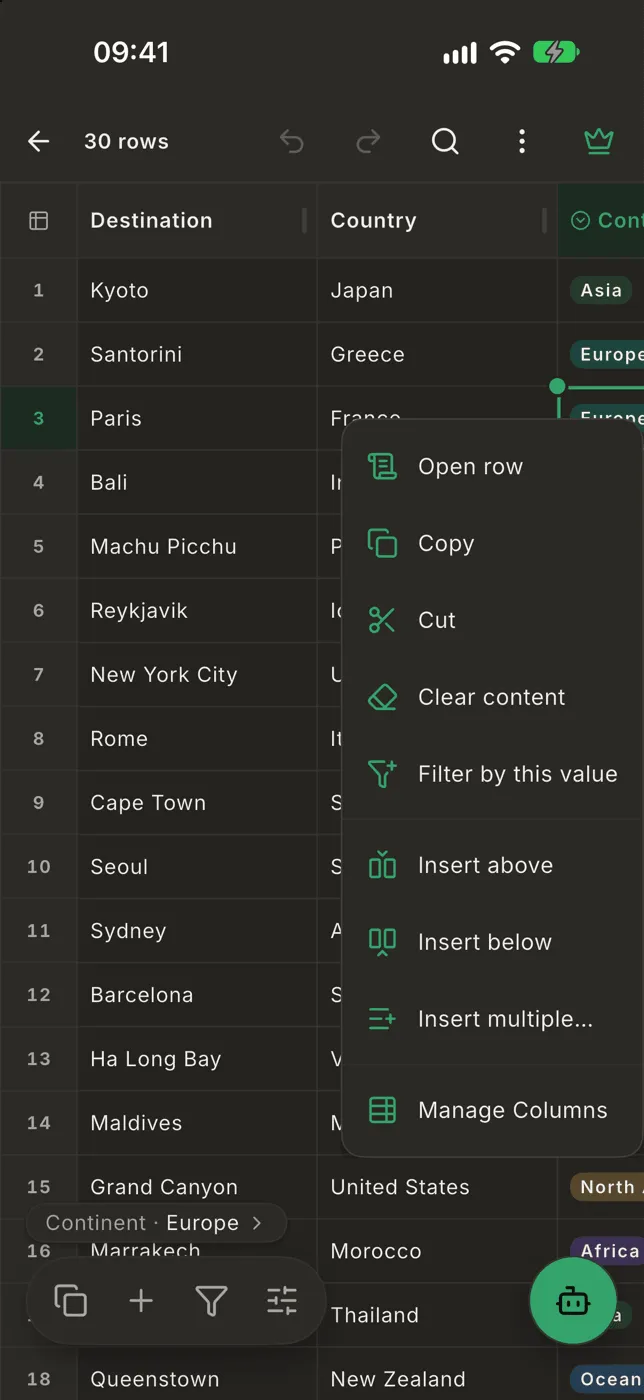
Section titled “Cut, clear and paste”Hold a cell, or a range of cells, to open the Edit menu:
- Copy: the same as Copy in the bottom bar.
- Cut: copies, then empties the cells.
- Clear content: empties the cells. On whole rows, only the columns you can see are cleared; hidden columns keep their values.
- Filter by this value (one cell): shows only the rows with exactly the same value in this column.
A message offers Undo after each of these.
Edits are saved as you go
Section titled “Edits are saved as you go”Every edit is kept in Smart CSV straight away; there is no save button for your work. The file itself is only changed when you write to file. The line Not written to file under the row count tells you when there are edits the file doesn’t have yet. See Undo & saving.